

Article written by Vakaris Noreika, VP of Product Research and Development at NordLayer
Monday morning, you handle security for an organization, and suddenly, your security tools flag personal ChatGPT use on a managed laptop, even though your org pays for ChatGPT Enterprise.
You wonder what the employee submitted to ChatGPT. Could be a public job description, or a customer ticket with contact information and internal account details. Maybe sensitive government documents, if that is your line of work, as the acting director of CISA did in 2025?
The case is hypothetical. In this article, we will follow 2 versions of the same event.
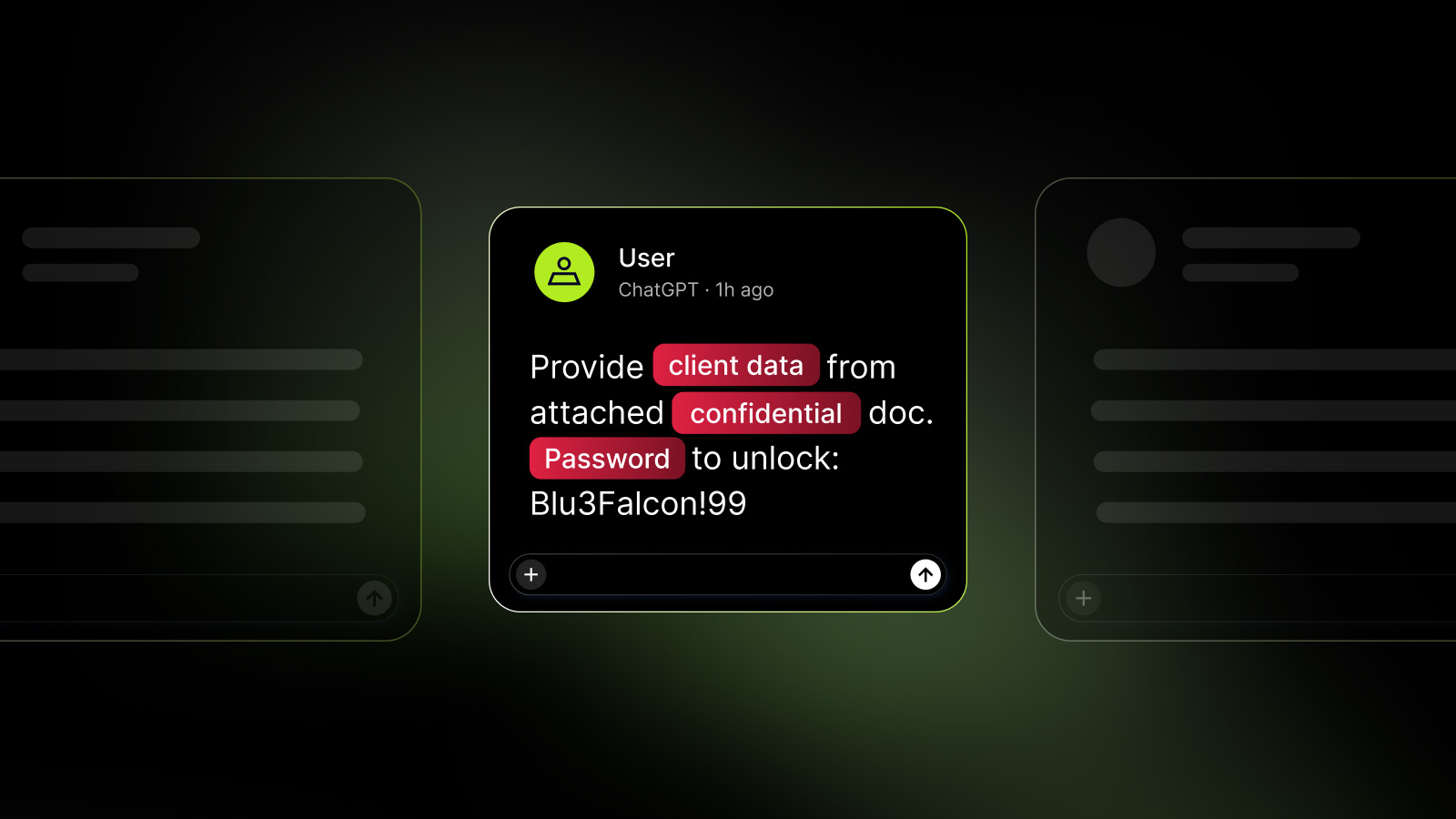
In the first, your security tools identify personal account use, but nothing in your current configuration checks what goes into the prompt. In the second, NordLayer AI Scout is deployed on the managed browser, with a custom detector set to “Block” for your customer account number format.
What do you do next?
1. Confirm the account and the employee
You start with the basics. With only your existing controls, you open the event that flagged personal ChatGPT use and work out which identity belongs to what. The user who signed in to your security tools may have a corporate email address. But the ChatGPT login behind the event may be a personal Gmail account.
That gives you 1 person, 2 identities, and 1 awkward conversation ahead.
With NordLayer AI Scout, the signed-in ChatGPT account appears beside the conversation, and the tool classifies new ChatGPT conversations as Personal or Corporate.